
Scroll Seamlessly Through Large SQLite Tables in Xamarin.Forms with Low Memory Overhead
If you’ve already worked with Infragistics' Xamarin.Forms/Xamarin.Android/Xamarin.iOS DataGrid (XamDataGrid) you’ll have discovered it knows some very neat tricks.
 Graham Murray
9 min read
Graham Murray
9 min read
 You can bind it to a remote OData service and scroll through the rows, and it will use the velocity of your movement to predict when it needs to fetch data and seamlessly load it before you get there. If you haven’t seen this trick yet, definitely check out our samples browser for Ultimate UI for Xamarin, which shows this off well.
Running the Sample
You can get the sample we’ll be building in this article here. Once you open the sample, you’ll need to make sure you have our Trial or RTM Nuget packages in your local repository and restore the Nuget packages.
Virtualizing Access to Other Data Sources
Our remote data samples in our samples browser and documentation give you lots of details on how to load remote OData services into the grid. But we didn’t stop there, additionally, you can also create your own custom versions of VirtualDataSource to virtualize access to other types of remote, or even local, data. In fact, recently, customers were asking us about whether it was possible to use our data grid with a SQLite database, without first loading all the data for a table into memory. This would be required if you wanted to provide some collection directly to the ItemsSource property on the grid, but there’s a better way if you extend VirtualDataSource. Lucky for you, though, I already did it.
If you build that project you’ll wind up with a SQLite specific version of our VirtualDataSource. This allows for linking to a table, or a joined set of tables, and then allowing for you to seamlessly page over it as if you were scrolling through a large, unbroken contiguous collection. Better yet, you can limit the amount of data pages the data source will keep in memory at one time, so you can put an upper bound on the memory usage in your mobile application.
SQLite Database Setup
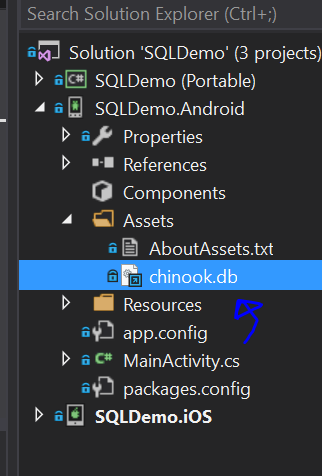
Ok, so let’s put it into practice. Given you have a Xamarin.Forms project set up using the XamDataGrid, you first need to add a SQLite database to the Android app and the iOS app. For the Android App, this goes in the assets:
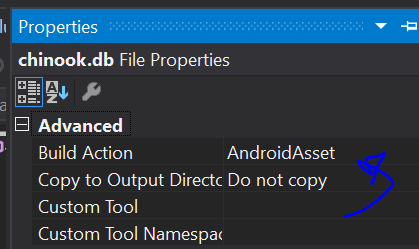
The Build Action for the database should be marked as AndroidAsset:
Given that, this logic, when placed in MainActivity.cs, right before Xamarin.Forms is initialized and before the main app is created, will make sure that the SQLite database is accessible to the application at runtime:
string targetPath =
    System.Environment.GetFolderPath(
        System.Environment.SpecialFolder.Personal
    );
var path = Path.Combine(
    targetPath, "chinook.db");

if (!File.Exists(path))
{
    using (Stream input =
        Assets.Open("chinook.db"))
    {
        using (var fs = new FileStream(
            path,
            FileMode.Create))
        {
            input.CopyTo(fs);
        }
    }
}
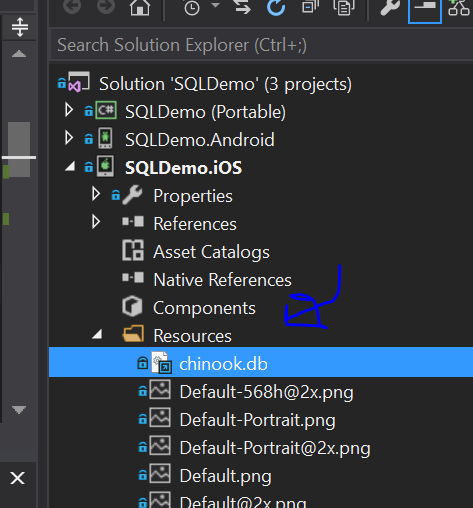
For iOS, you should place the database file in the Resources for the application:
And make sure that the Build Action is set to BundleResource:

Given the database file being properly included, this logic, when placed in AppDelegate.cs, right before Xamarin.Forms is initialized and before the main app is created, would ensure that it is accessible to the iOS application at runtime:
var targetPath = Environment.GetFolderPath(
    Environment.SpecialFolder.Personal);
targetPath = Path.Combine(targetPath, "..", "Library");

var path = Path.Combine(targetPath, "chinook.db");
if (!File.Exists(path))
{
    var bundlePath = NSBundle.MainBundle.PathForResource(
        "chinook",
        "db"
    );
    File.Copy(bundlePath, path);
}
For both platforms, the file path to the SQLite database can now be passed into the Xamarin.Forms App when it is created:
LoadApplication(new App(path));
The app will then just make sure that path is available to the page we will be using:
public App(string dbPath)
{
    InitializeComponent();
    MainPage = new SQLDemo.MainPage(dbPath);
}
Live Virtual Scrolling Through SQLite Tables
To read data from a SQLite database, first you need a SQLite client that is compatible with a PCL (portable class library) and/or Xamarin.Android/Xamarin.iOS, so we’ll install the sqlite-net-pcl Nuget package.

The SQLite.NET library includes a lightweight ORM tool that it will use to hydrate data being read into POCO types, so we first need to create a POCO type for the table we are interested in:
using SQLite;
using System;
using System.Collections.Generic;
using System.Linq;
using System.Text;
using System.Threading.Tasks;

namespace SQLDemo.Data
{
    [Table("tracks")]
    public class Track
    {
        [PrimaryKey, AutoIncrement]
        public int TrackId { get; set; }

        [MaxLength(200)]
        public string Name { get; set; }

        public int AlbumId { get; set; }

        [Column("Title")]
        public string AlbumTitle { get; set; }

        public int MediaTypeId { get; set; }

        public int GenreId { get; set; }

        [MaxLength(220)]
        public string Composer { get; set; }

        public int Milliseconds { get; set; }

        public int Bytes { get; set; }

        public decimal UnitPrice { get; set; }
    }
}
This type maps to the tracks table in the Chinook SQLite sample database, which stores sample data about various tracks off popular music albums. We’ve indicated here, via attributes, various meta information about the table, such as the primary key, and maximum lengths of some of the string columns.
Now that data can be loaded from the tracks table, we are all set up to scroll over that table in the XamDataGrid.
First, we can lay out the grid in XAML:
<?xml version="1.0" encoding="utf-8" ?>
<ContentPage xmlns="http://xamarin.com/schemas/2014/forms"
             xmlns:x="http://schemas.microsoft.com/winfx/2009/xaml"
             xmlns:local="clr-namespace:SQLDemo"
             x:Class="SQLDemo.MainPage"
             xmlns:igGrid="clr-namespace:Infragistics.XamarinForms.Controls.Grids;assembly=Infragistics.XF.DataGrid">

    <Grid>
        <Grid.RowDefinitions>
            <RowDefinition />
            <RowDefinition Height="Auto" />
        </Grid.RowDefinitions>

        <igGrid:XamDataGrid x:Name="grid" RowHeight="90"
                        SelectionMode="MultipleRow"
                        HeaderClickAction="SortByMultipleColumnsTriState"
                        AutoGenerateColumns="False">
            <igGrid:XamDataGrid.Columns>
                <igGrid:TextColumn PropertyPath="Name"
                                LineBreakMode="WordWrap"
                                Width="1*"
                                />
                <igGrid:TextColumn PropertyPath="Composer"
                                LineBreakMode="Ellipsis"
                                Width="1.25*"/>
                <igGrid:TextColumn PropertyPath="AlbumTitle"
                        HeaderText="Album Title"
                        LineBreakMode="WordWrap"
                        Width="1*"/>
                <igGrid:NumericColumn PropertyPath="UnitPrice"
                        HeaderText="Unit Price"
                        MinFractionDigits="2"
                        Width="1*"/>
            </igGrid:XamDataGrid.Columns>
        </igGrid:XamDataGrid>
    </Grid>

</ContentPage>
In the XAML, we’ve defined a XamDataGrid and configured some columns, just as if we were about to bind some in memory data to the grid. We could have skipped defining the columns and allowed them to auto generate, but there are sufficient number of columns on the tracks table that this would get pretty crowded.
Ok then, so how do we bind the grid against the SQLite table? First we need to create a connection to talk to the SQLite database:
_connection = new SQLiteAsyncConnection(dbPath);
Where dbPath is the file path to the SQLite database that we passed around earlier. Then, we just need to create a SQLiteVirtualDataSource, configure it and assign it to the grid:
var dataSource = new SQLiteVirtualDataSource();
dataSource.Connection = _connection;
dataSource.TableExpression =
    "tracks left outer join albums on tracks.AlbumId = albums.AlbumId";
dataSource.ProjectionType = typeof(Track);

grid.ItemsSource = dataSource;
Here we:
- Provide the connection we created to the virtual data source.
- Provide a table expression to the virtual data source, to indicate which table to pull data from.
- Indicate the POCO type we created to hydrate the data rows.
In the TableExpression we simply could have provided tracks, alternatively, but this example creates a join against the albums table in order to look up the album titles so that they can be populated in the AlbumTitle property.
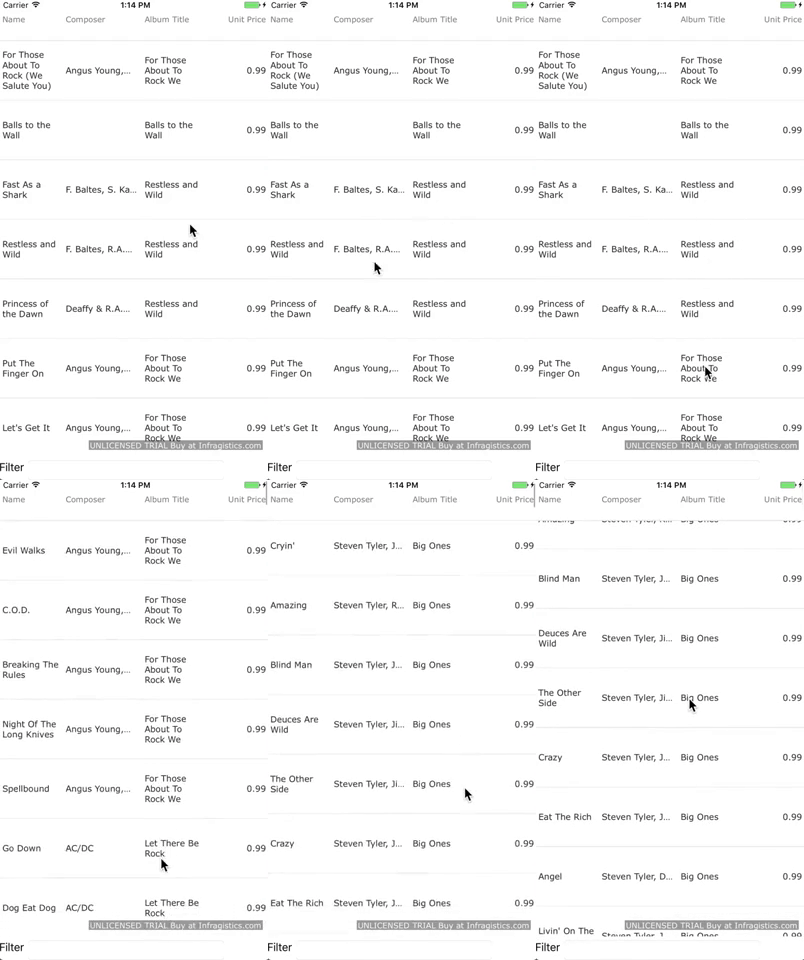
And that’s it! If you run the app, you’ll see that you can scroll through the table as if it is just one long contiguous set of records. In reality, though, only a fraction of the table is in memory on the device at once. You may have trouble scrolling fast enough to see a scenario where you get to some records before they have loaded, because the grid actually predictively loads them under the covers. Here’s what it will look like:
You can see the grid playing catch up, though, if you change the sort of the grid by tapping the column headers. This causes the current client side data to be invalidated, and new data, sorted as you requested, to be fetched, but, again, only as much as necessary.
Adding Some Filtering
Ok, let’s take that and make things a bit fancier, shall we? First, add this to the grid in the XAML for the page:
<StackLayout Orientation="Horizontal" Grid.Row="1">
    <Label Text="Filter" />
    <Entry TextChanged="Entry_TextChanged" WidthRequest="300" />
</StackLayout>
That markup has added an entry field so that we can collect a filter value by which to filter the table we are displaying. An event fires whenever the text of the entry has changed. So let’s add the handler for that to the code behind:
private void Entry_TextChanged(object sender, TextChangedEventArgs e)
{
    if (String.IsNullOrEmpty(e.NewTextValue))
    {
        grid.FilterExpressions.Clear();
    }
    else
    {
        grid.FilterExpressions.Clear();
        grid.FilterExpressions.Add(FilterFactory.Build(
            (f) =>
            {
                return f.Property("Name").Contains(e.NewTextValue)
                .Or(f.Property("AlbumTitle").Contains(e.NewTextValue))
                .Or(f.Property("Composer").Contains(e.NewTextValue));
            }));
    }
}
This code will clear the grids filters if the entry field becomes blank, but otherwise will build a filter to see if Name or AlbumTitle or Composer match the provided string and make sure that filter gets used in the queries passed to SQLite.
Here’s what the sample looks like now:
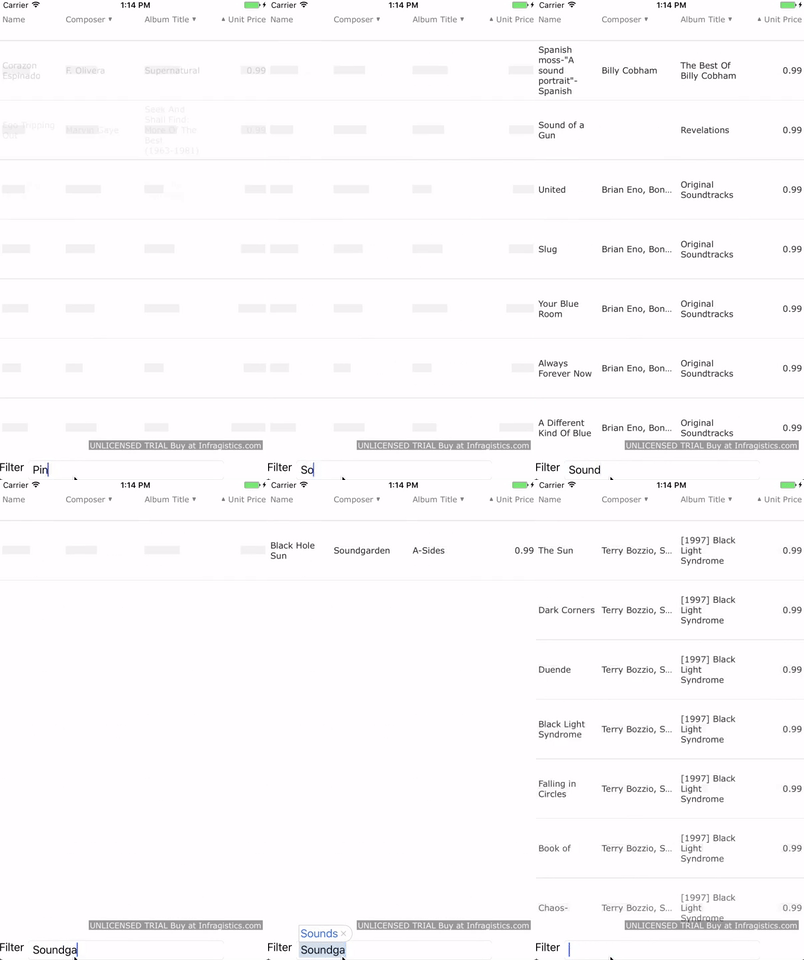
As you can see, every time you type a letter, the local grid will need to refresh its content with the new filtered content, which you can then scroll through, in its entirety.
You can learn more by checking out our “Write Fast” and “Run Fast” lessons and videos. You’ll also want to be sure to download a free trial of Infragistics Ultimate UI for Xamarin.
Graham Murray is a software architect and author. He builds high performance cross-platform UI components for Infragistics, spanning desktop, web, and mobile. Follow him on Twitter at @the_graham.